
Introduction
A Jumbled Sentence question challenges students by presented them with a sentence that has key words mixed up. They then need to rearrange the words to form a logically and grammatically correct sentence. This type of question can promote active learning by getting students to construct meaningful sentences by organising disordered elements into a logical structure.
Workflow to set up and use ‘jumbled sentence’ questions
Start the process by creating a test in your module. For more information, see the Setting up a test in Blackboard guide here.
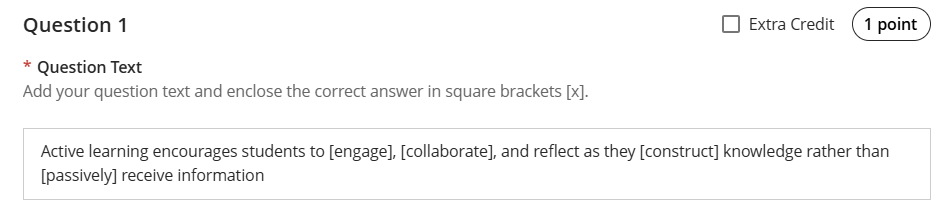
Click the PLUS icon to add a new question, and select Add Jumbled Sentence Question. Type in your sentence in the “Enter question test” box, and put the words that are to be jumbled in square brackets.
For example, take the sentence “Active learning encourages students to engage, collaborate, and reflect as they construct knowledge rather than passively receive information.” Key words might include engage, collaborate, construct, passively and so on. So, we would put those words in square brackets, as shown below:
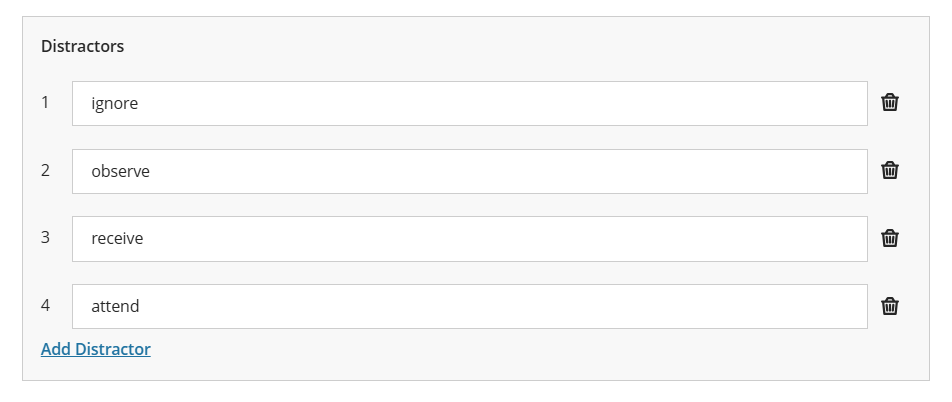
 We can then add Distractors if we so desire. These are extra words to challenge the student even further to reduce students guessing, or using “trial and error”, thus promoting deeper thinking skills. Whilst recommended, it is not essential to add distractors. For example:
Automated Feedback can be added to help students in their learning journey, allowing you to add both correct and incorrect feedback.
Question metadata can be added to help identify the question at a later date, especially useful if you are using question banks.
When finished, click Save
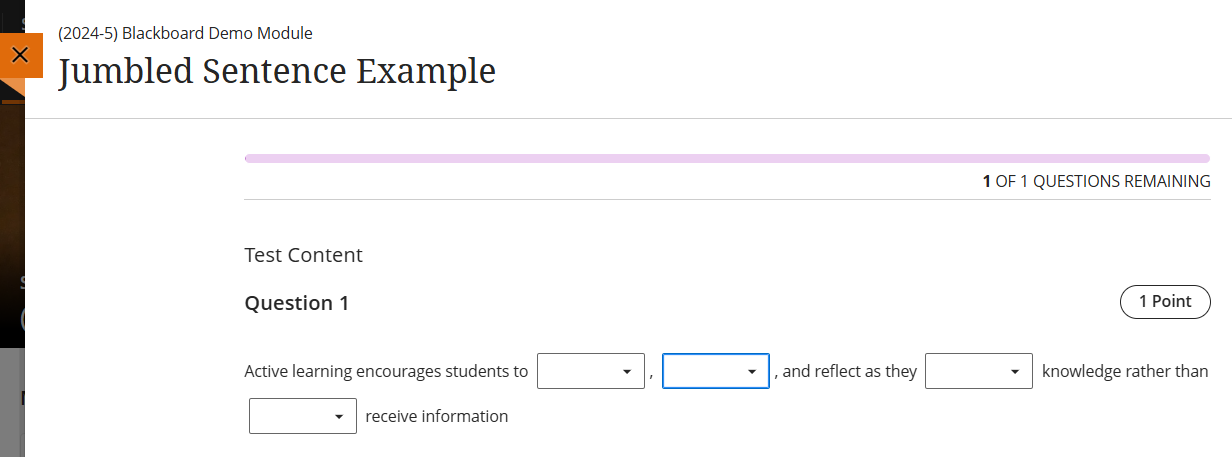
You might find it useful to test your question beforehand. You can do this by going into Student Preview mode (top right of the screen) and accessing the test. As can be seen below, students are presented with the sentence and for each keyword, they can select from the list of words in square brackets plus any distractors that have been added:
For more information, please contact the Digital Learning Specialist team via email elearning@tees.ac.uk.