
This guide shows you how to convert a PowerPoint presentation to a video that can be uploaded to our streaming video platform, ReView. ReView can also automatically transcribe the audio contained within your presentation and provide subtitles to students who require them. This process can be very useful with large presentations, as they can take up a lot of space in your module, eating up valuable quota.
Create a video
- Open the presentation that you want to convert to a video.
- Preview the presentation by using the Slide Show > From the Beginning option to ensure that your audio narration can be heard.
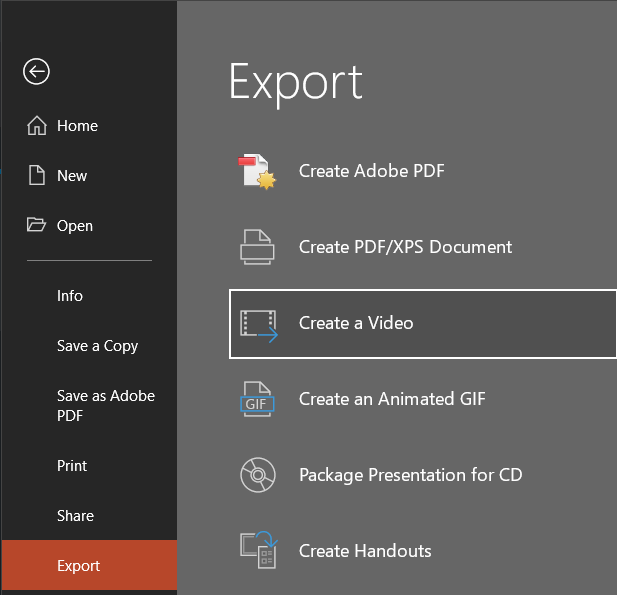
- Click File > Export > Create a Video
- It is recommended that Full HD (1080p) and Use Recorded Timings and Narrations are left selected.
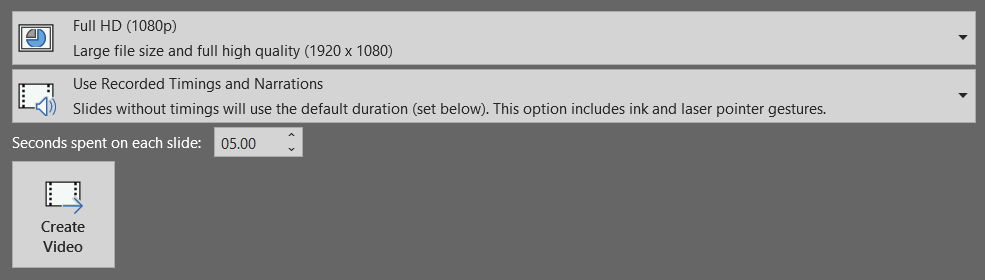
- The Seconds spent on each slide value is used for slides that contain no audio narration or timings, the default is 5 seconds.
- Click Create Video
- Choose where to save the video on your computer and click Save.
- The time it takes to create the video will vary depending on the size of your presentation, but you can see the progress in the bottom toolbar of PowerPoint.
- Once the export is complete, locate the video file on your computer and view it to ensure the content is played back correctly.
Upload your video to ReView
You now need to upload your video to ReView, our video hosting platform. Instructions on how to do this can be found here: https://eatsupport.tees.ac.uk/staff/knowledgebase/uploading-external-video-content-in-review/